


Time Filter
The Time Filter lets you control the time window for data displayed on the dashboard. It now includes two toggle options:
-
Time Filter – Enables configuration of Relative Time or Absolute Time filters. To configure, enable the Time Filter toggle and click Apply. Click the date time picker next to the tool bar on the dashboard.
-
Relative Time-The Relative Time option lets you select a time range relative to the current time, making it ideal for monitoring recent trends or real-time updates.
You can choose from the following options:
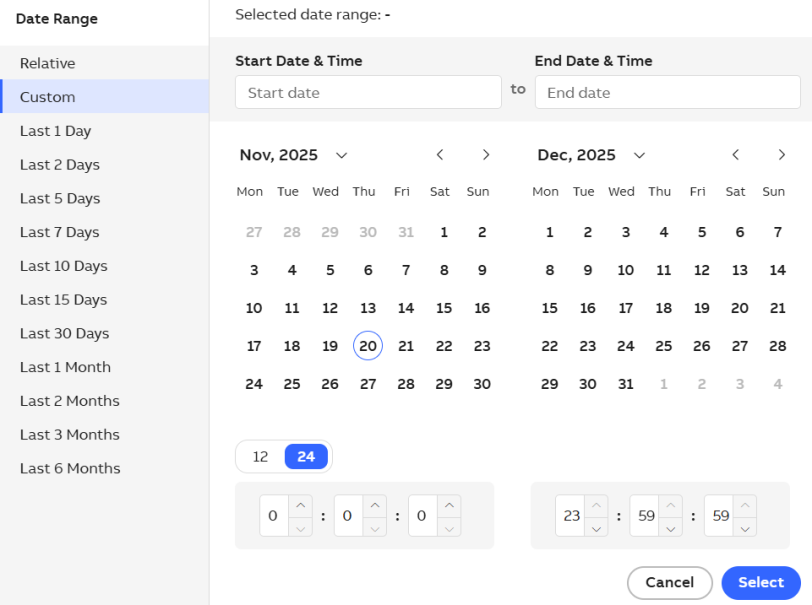
Relative and Absolute Time options
-
Custom
-
Last 1 Day
-
Last 2 Days
-
Last 5 Days
-
Last 7 Days
-
Last 10 Days
-
Last 15 Days
-
Last 30 Days
-
Last 1 Month
-
Last 2 Months
-
Last 3 Months
-
Last 6 Months
-
If you select Custom:
-
Enter a number and select the unit (Minutes, Hours, Days, Months, or Years) from the Custom fields.
-
-
For both Custom and preset ranges:
-
Enable the Refresh toggle.
-
Enter a number and select the frequency unit (Minutes, Hours, Days, Months, or Years) for automatic updates.
-
-
-
Absolute Time- The Absolute Time option lets you select a fixed time range for precise historical analysis. Use the calendar to select a date, and the From and To time fields to specify the exact start and end times.
-
-
Refresh – When enabled and applied, shows the last updated timestamp on the dashboard so you know when the data was last refreshed.
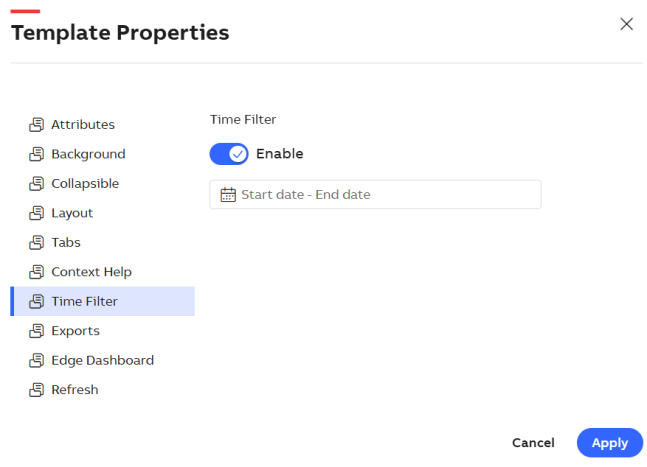
Time Filter
Once your selections are complete in either Relative Time or Absolute Time:
-
Click Apply to apply the selected range to the dashboard.
-
Click Save to save the configuration for future use.
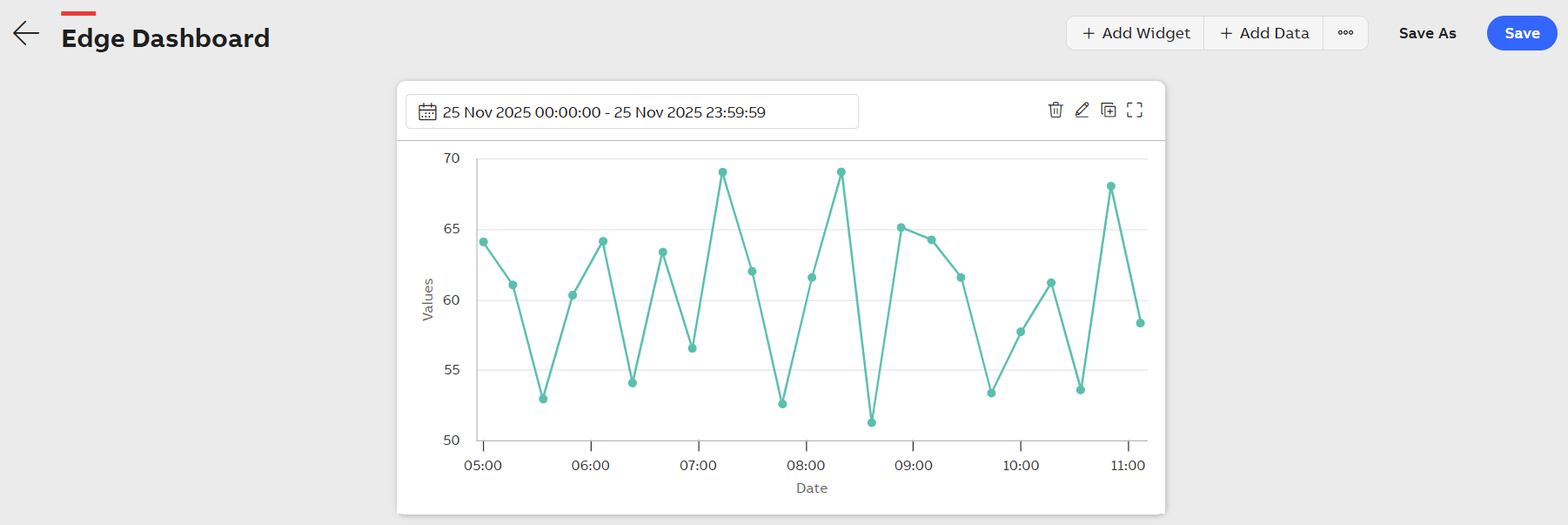
Time-duration